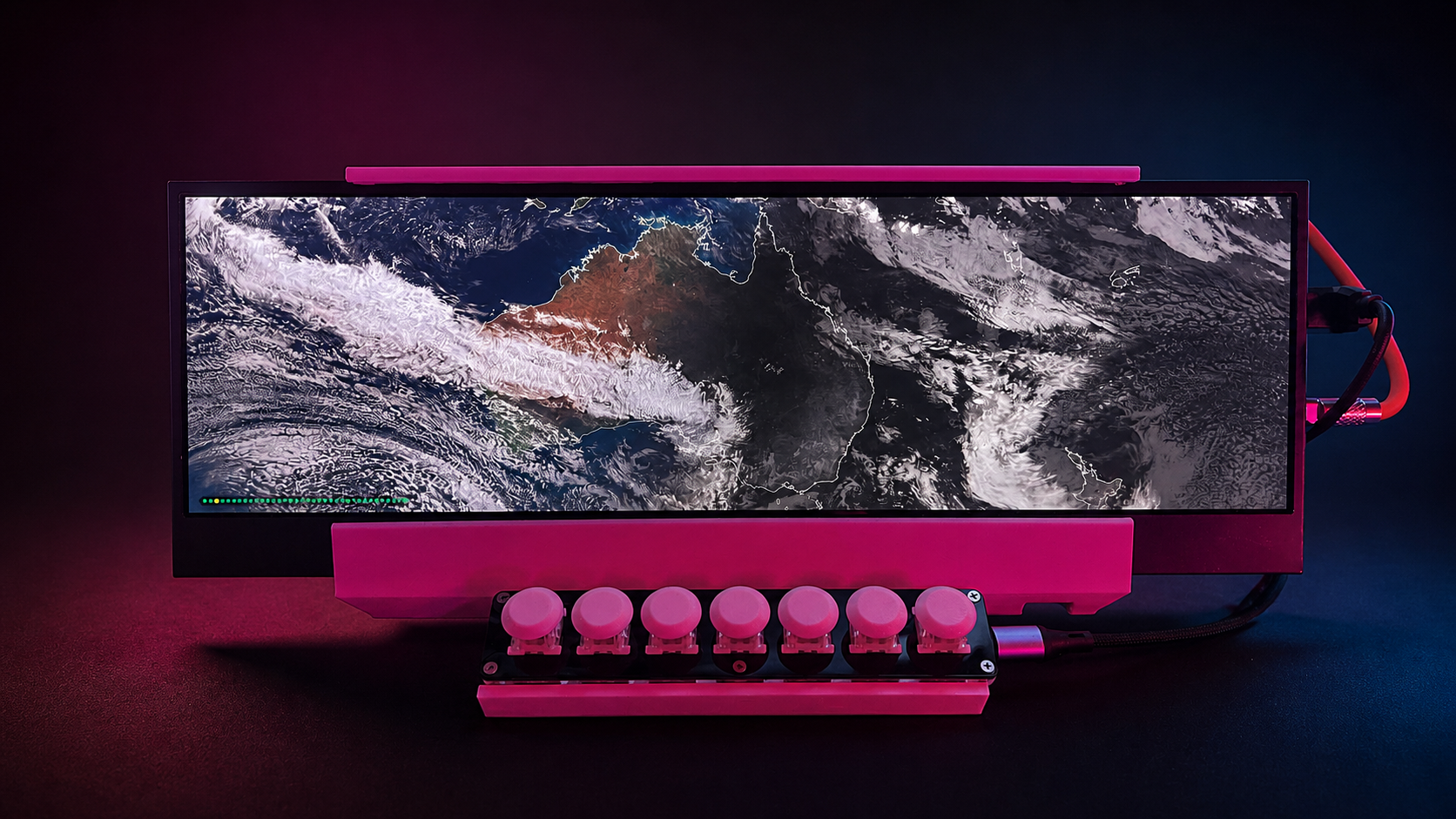
The Ultrawide Home Kiosk I Actually Use Every Day
A practical build note on turning a Raspberry Pi 3, a 3840 × 1100 ultrawide monitor, a 3D-printed frame, and a seven-key button switcher into a dedicated home information display.
Introduction
After building a small rack-mounted observability kiosk for my Proxmox homelab, I wanted a second display with a different job.
The rack kiosk answers operational questions: is the lab healthy, are backups working, is the network behaving, are logs flowing? It is a small status wall for infrastructure.
This kiosk is not that. This one is for the room.
It sits on an ultrawide monitor and shows the things I actually glance at while moving through the house: what is on the calendar, when the next tram or bus leaves, what the weather will do, whether the home systems are online, what the satellite view over Australia looks like right now, and what living costs need attention this month.
The most interesting part of the project was not any single panel. It was designing a kiosk that feels like an appliance rather than a browser. The screen is very wide, the content is deliberately sparse, and a small seven-key USB keypad gives it physical controls.
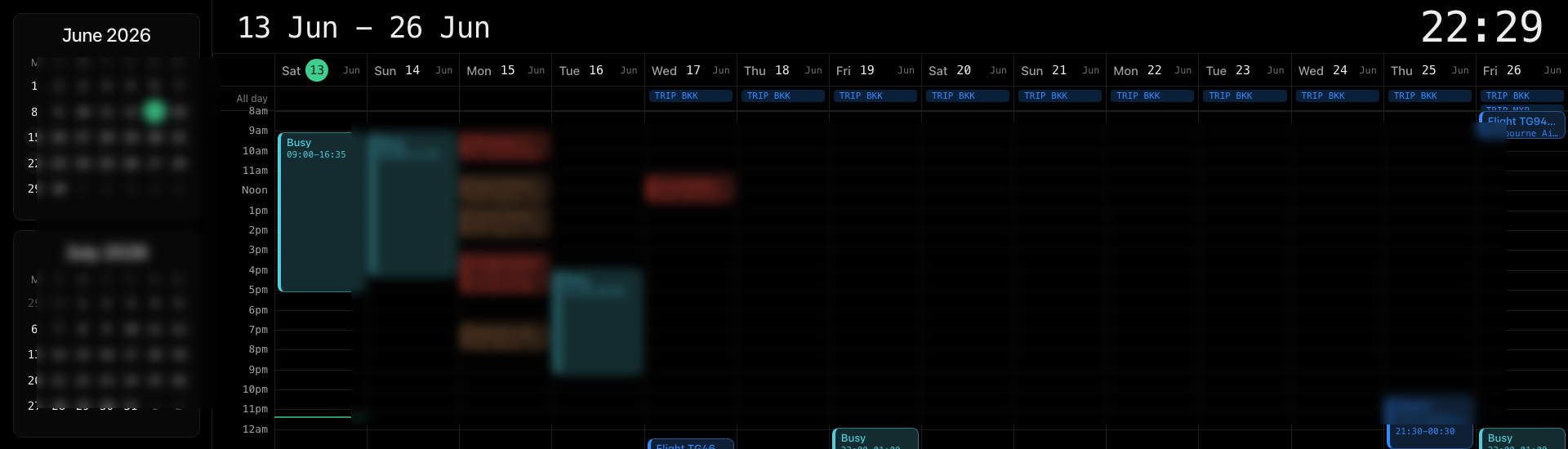
The wide calendar view: two mini-months on the left and a fourteen-day schedule across the rest of the panel. Calendar event details are blurred here for privacy.
Prerequisites
Before starting:
- A Raspberry Pi running Raspberry Pi OS with desktop — this build uses a Pi 3, but a Pi 4 or Pi 5 gives more browser headroom
- An always-on Linux machine to serve pages from — this setup uses the PULSE VM in the homelab, but any box that stays up on the local network works
- Python 3 on the host, and Chromium plus Xorg on the Pi
- The API keys and feed URLs you plan to use: calendar ICS URLs, a public transport API with your stop IDs, weather coordinates, the BOM Himawari satellite image URL, and optionally a private or sanitized feed for living costs
All data sources here are swappable. The architecture only requires each local service to expose a stable page or JSON contract. The pages are generated by small Python HTTP services and backed by caches; they are not static files and the Pi never calls an upstream provider directly.
Hardware
Raspberry Pi Display Client
The display client is a Raspberry Pi 3-class board running 64-bit Raspberry Pi OS based on Debian 13 (Trixie). It boots from a microSD card and has no additional storage. The production machine reports 905 MiB usable RAM; with the seven tabs loaded it currently uses about 604 MiB and retains roughly 301 MiB available. That measurement matters more than a generic browser requirement: this exact workload fits on the 1 GB machine, although a Pi 4 gives more margin.
The Pi does not collect metrics, store logs, run databases, or process telemetry. It runs Chromium, listens for keypad events, and displays pages. That workload is light enough that the Pi 3 handles it without complaint.
| Component | Specification |
|---|---|
| Platform | Raspberry Pi 3 Model B+ |
| Memory | 1GB LPDDR2 |
| Storage | microSD card |
| Operating System | Raspberry Pi OS 64-bit / Debian 13 (Trixie) |
| Power Supply | 5V / 2.5A minimum via micro-USB |
| Browser | Chromium |
| Purpose | Display client and keypad listener |
Rack-Mounted Display
The monitor is a Wisecoco ultrawide panel from AliExpress. It connects to the Pi over HDMI and draws power from USB-C. The panel’s native resolution is 3840 × 1100.
| Component | Specification |
|---|---|
| Manufacturer | Wisecoco |
| Native resolution | 3840 × 1100 |
| Interface | HDMI (video) + USB-C (power) |
| Design canvas | 1920 × 550 |
The physical frame is part of the build, not an afterthought. I designed the monitor support in Autodesk Fusion, then printed it on a Bambu Lab A1. The goal was to make the screen and the button switcher read as one object: less spare monitor on a desk, more small domestic instrument panel.
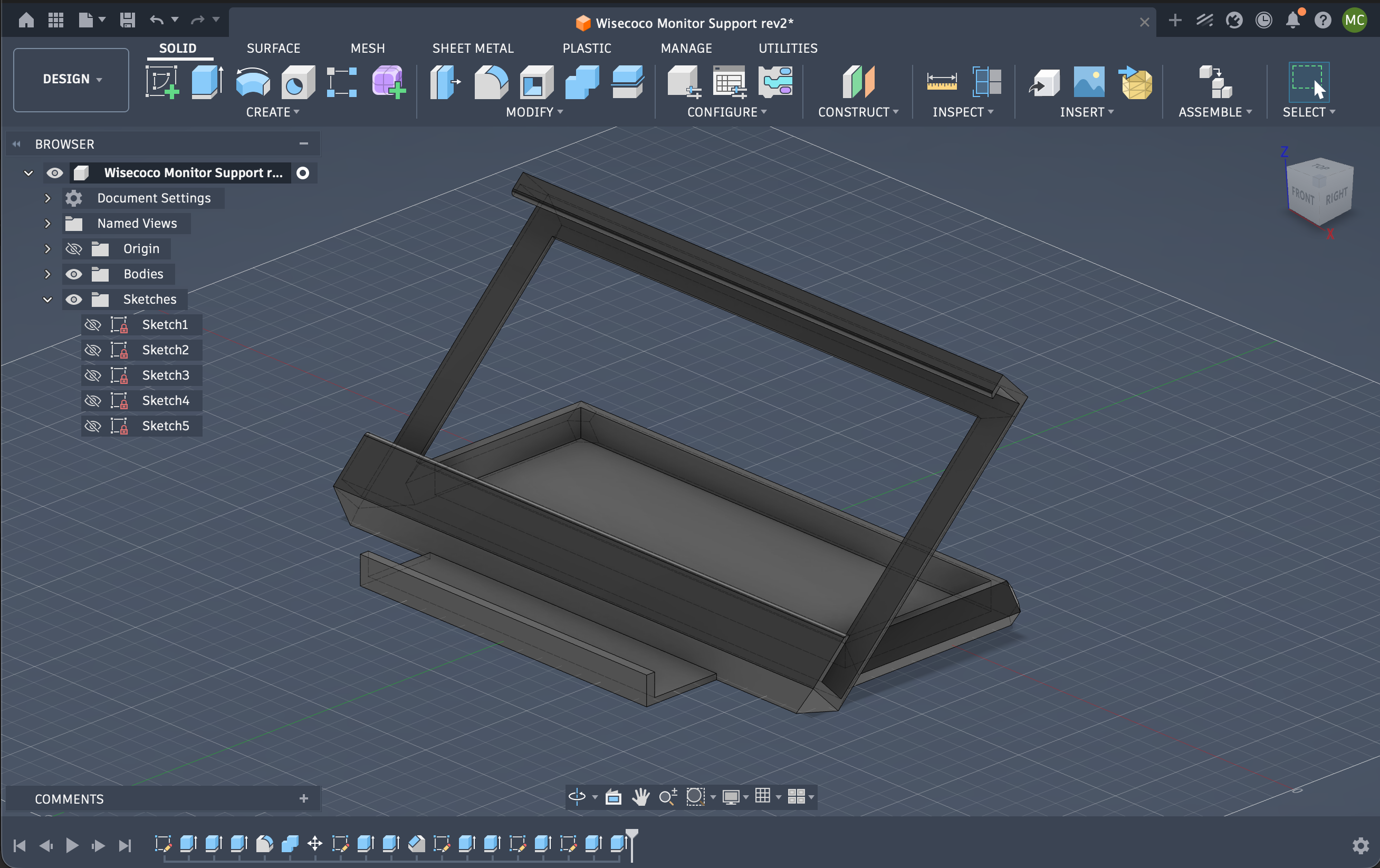
The Fusion model for the printed monitor support. The frame was designed around the actual ultrawide panel and seven-key button switcher, not as a generic stand.
The implementation repository includes the Fusion source file for the frame. If you want to inspect or adapt the build, the project is available on GitHub: matteocurcio/kiosk-ultrawide, including the downloadable Ultrawide Kiosk.f3d source file.
The Pi 3 outputs at 1920 × 550; the panel upscales internally to 3840 × 1100.
With the current KMS/Xorg stack, the kiosk launcher creates and selects the mode
with xrandr rather than relying on legacy /boot/config.txt HDMI directives:
xrandr --newmode "1920x550_60.00" \
  83.17 1920 1984 2176 2432 550 551 554 570 -HSync +Vsync
xrandr --addmode HDMI-1 "1920x550_60.00"
xrandr --output HDMI-1 --mode "1920x550_60.00"
The launcher discovers the connected output name instead of assuming HDMI-1,
then reapplies the mode five seconds after Chromium starts. That second pass is
intentional: Chromium or the display’s EDID can briefly restore 1920 × 1080.
Designing pages at 1920 × 550 means the browser’s device pixel ratio behaves predictably and page iteration is fast. The monitor handles the upscale.
Button Switcher
The input device is a seven-key programmable mini keyboard from AliExpress. It enumerates as a standard USB HID keyboard on the Pi, so there is no driver installation and no vendor software on the runtime machine. Linux sees it as a keyboard the moment it is plugged in.
Programming the Keypad
Out of the box, the seven keys send standard HID keycodes. The specific codes depend on the unit. To find them, plug the keypad into the Pi and run:
evtestSelect the keypad from the device list, then press each key in order. The output shows the code integer and the symbolic name for each event. Note the code for each of the seven keys.
The keypad vendor provides a Windows configuration tool that can remap keys to any HID keycode. Whether you need it depends on what the defaults are. If each key sends a clean single-keycode event with no modifiers, the defaults are usable as-is. If the factory codes are inconvenient (media keys, modifier combos), remapping to a predictable range such as F13–F19 makes the Python controller cleaner.
This keypad was programmed to emit the ordinary digits 1 through 7. The
controller accepts both number-row and numeric-keypad scan codes. The production
mapping lives in client/grafana-kiosk-tab-switcher.py; there is no vendor
driver or private desktop shortcut layer.
Why Ultrawide?
Most dashboards are designed for 16:9 screens. An ultrawide display changes the problem.
If you simply stretch a normal dashboard, everything becomes comically wide. Cards turn into paddles, graphs become shallow strips, and the layout starts to feel like a spreadsheet projected across a cinema screen.
The useful move was to treat the display as a horizontal information surface. The working canvas is 1920 x 550, which maps cleanly to the monitor’s 3840 x 1100 geometry by scaling up. Designing at half resolution keeps iteration fast and predictable while preserving the real aspect ratio.
Each page is built for that shape:
- the calendar can show fourteen days without feeling cramped;
- transport can show trams and buses side by side;
- weather can use a long 72-hour temperature graph;
- the satellite page can frame Australia properly;
- status can use horizontal cards instead of stacked rows;
- monthly expenses can be grouped by category without becoming a spreadsheet.
Architecture
The kiosk has three layers:
Home services and APIs
├── calendars
├── public transport schedules
├── weather forecasts
├── BOM satellite frames
└── homelab status metrics

PULSE VM
├── seven lightweight Python HTTP services
├── cached API responses
├── preprocessed satellite frames
└── server-rendered kiosk pages

Raspberry Pi kiosk
├── Chromium in fullscreen
├── preloaded tabs
├── Python tab switcher
└── seven-key USB keypad
The pages are not heavy Grafana dashboards. Most are custom, lightweight HTML panels served from the PULSE VM. Grafana is excellent for metrics-heavy observability, but for a domestic kiosk, custom panels are easier to shape precisely.
The Pi opens each panel in its own Chromium tab. A small Python controller talks to Chromium’s local debugging endpoint and rotates the active tab. Because the tabs are already loaded, switching pages is almost instant.
Pi Setup
The repository contains an idempotent installer, so the rebuild path is shorter and less error-prone than reproducing the commands by hand:
- Flash 64-bit Raspberry Pi OS, enable SSH, and create an administrator account.
- Copy
client/from the repository to the Pi. - Run
sudo ./install-pi-kiosk.sh --with-packages. - Set
KIOSK_HOME_URLSin akiosk.serviceoverride if the server hostname is notpulse. - Start the service and run the acceptance checks in
docs/installation.md.
The installer creates a separate non-login kiosk account and installs Xorg,
Openbox, Chromium, xrandr, unclutter, curl, and Python 3. It also installs
the display service, watchdog timer, raw-input permissions, and SayoDevice LED
helper. Screen blanking is disabled in client/xinitrc with xset s off,
xset -dpms, and xset s noblank.
Chromium starts all seven pages in one process:
chromium \
  --kiosk --no-first-run --disable-session-crashed-bubble \
  --remote-debugging-address=127.0.0.1 \
  --remote-debugging-port=9222 \
  --window-size=1920,550 \
  http://pulse:9866/status \
  http://pulse:9866/transport \
  'http://pulse:9861/card?layout=ultrawide' \
  'http://pulse:9863/card?layout=home' \
  http://pulse:9866/calendar \
  http://pulse:9866/clocks \
  http://pulse:9866/expenses
The loopback-only DevTools port is required by the controller. It is not reachable from the LAN.
Serving the Pages
Pulse runs seven Python services under systemd. Each service uses the standard library HTTP server and owns its cache, so no separate nginx or static file server is required:
| Port | Service | Responsibility |
|---|---|---|
| 9857 | Route 11 | signed PTV departures and card |
| 9858 | Buses 200/207 | signed PTV departures and card |
| 9859 | Route 86 | signed PTV departures and card |
| 9861 | Weather | Open-Meteo forecast and rendered layouts |
| 9862 | Calendar | merged ICS events |
| 9863 | Satellite | BOM FIFO cache, health, and animation page |
| 9866 | Compositor | status, transport, calendar, clocks, expenses |
Real credentials and feed URLs live in root-owned /etc/*.env files. The
repository includes sanitized .env.example contracts. This division means a
clone is complete enough to rebuild the software but cannot publish a private
calendar URL, PTV key, or Google Sheet accidentally.
If the internet drops, the services retain their latest useful cache where the source permits it. Chromium continues talking only to Pulse.
The Pages
All private data sources listed here need to be replaced with your own. Feed
URLs, stop IDs, API keys, coordinates, and dashboard endpoints live in the
service-specific /etc/*.env files described by server/env/*.env.example.
Calendar
Data source: ICS calendar feeds, fetched by the calendar exporter behind a five-minute cache. The compositor requests normalized events from the exporter; no upstream calendar call happens in the browser.
Configure your feeds, labels, and colours in
/etc/grafana-calendar-exporter.env. Most calendar providers offer a private
ICS export link from their settings page. Treat those links as credentials.
The calendar is a planning surface rather than a miniature app. It is meant to be read from a short distance.
Transport
Data source: the signed Public Transport Victoria Timetable API. Three exporters poll no faster than every 90 seconds, keep the result in memory, and serve every browser refresh from that cache.
Set the developer ID, API key, route IDs, stop IDs, and direction labels in the three PTV environment files. The API credentials never reach the browser.
The layout shows trams and buses as side-by-side columns: destination, minutes until departure, and scheduled time. It is designed to be readable from a few metres away.
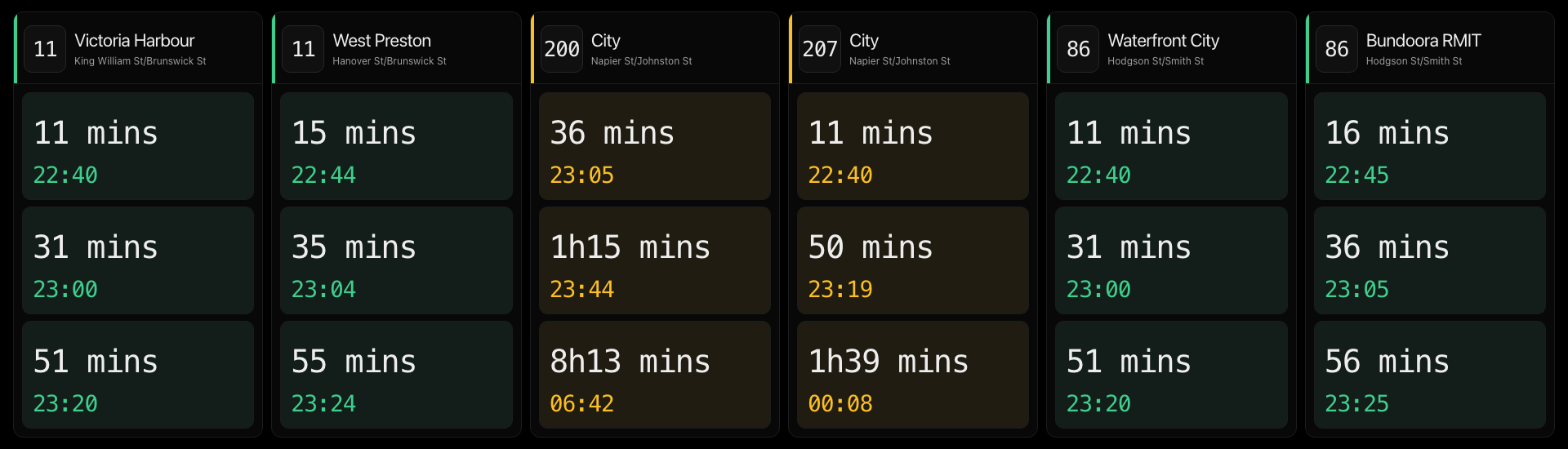
Transport is deliberately blunt: destination, minutes away, and scheduled time.
Weather Forecast
Data source: Open-Meteo — free, no API key required. The exporter fetches current conditions, hourly values, sunrise/sunset, and a 14-day forecast every 15 minutes.
Set latitude, longitude, timezone, and display labels in
/etc/fitzroy-weather-exporter.env.
The page shows the current temperature and conditions, a 72-hour graph, a day/night strip, sunrise and sunset markers, and compact daily forecast chips along the bottom.
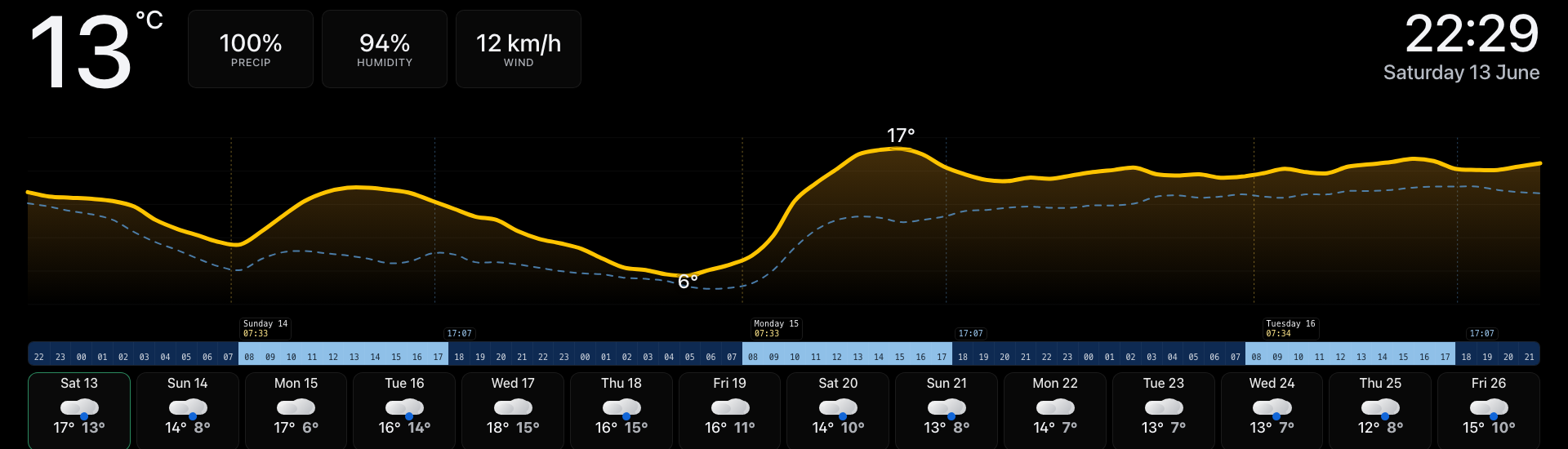
The weather page uses the wide format for a long forecast graph rather than a tall phone-style layout.
Satellite
Data source: Bureau of Meteorology Himawari satellite imagery, fetched and cached by a FIFO exporter on Pulse. Its environment file selects the BOM product, cache size, poll interval, and target geometries.
The page animates through frames held in memory. It never fetches from BOM directly; the exporter handles that, and the page reads the local frame list.
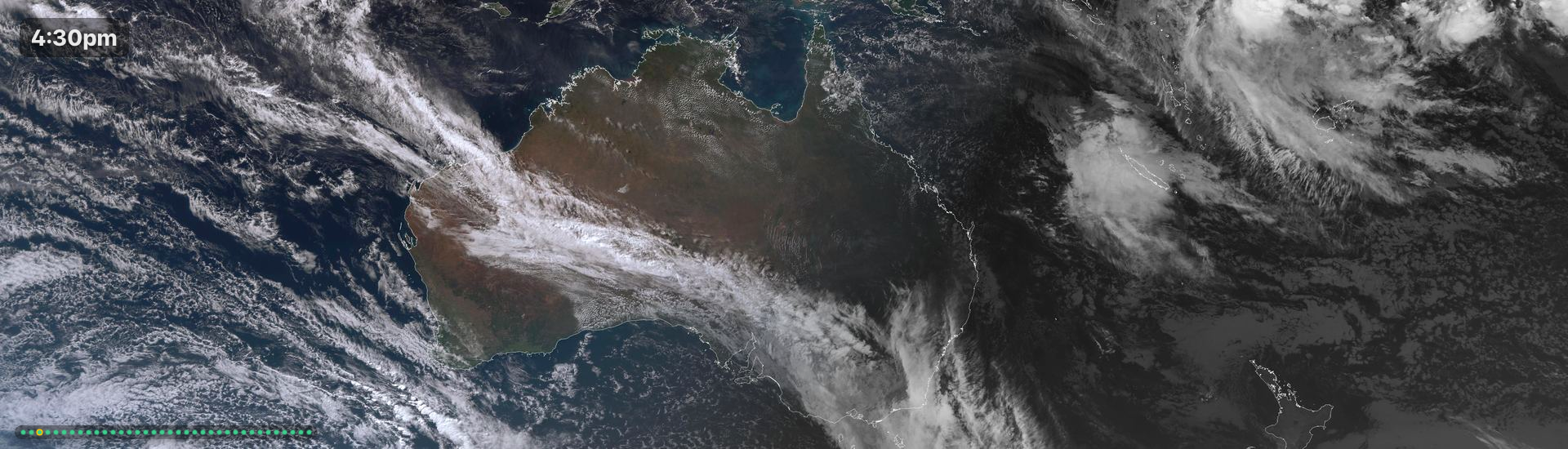
Australia from the satellite page. Small debug dots at the bottom show which frames are cached and which is currently displayed.
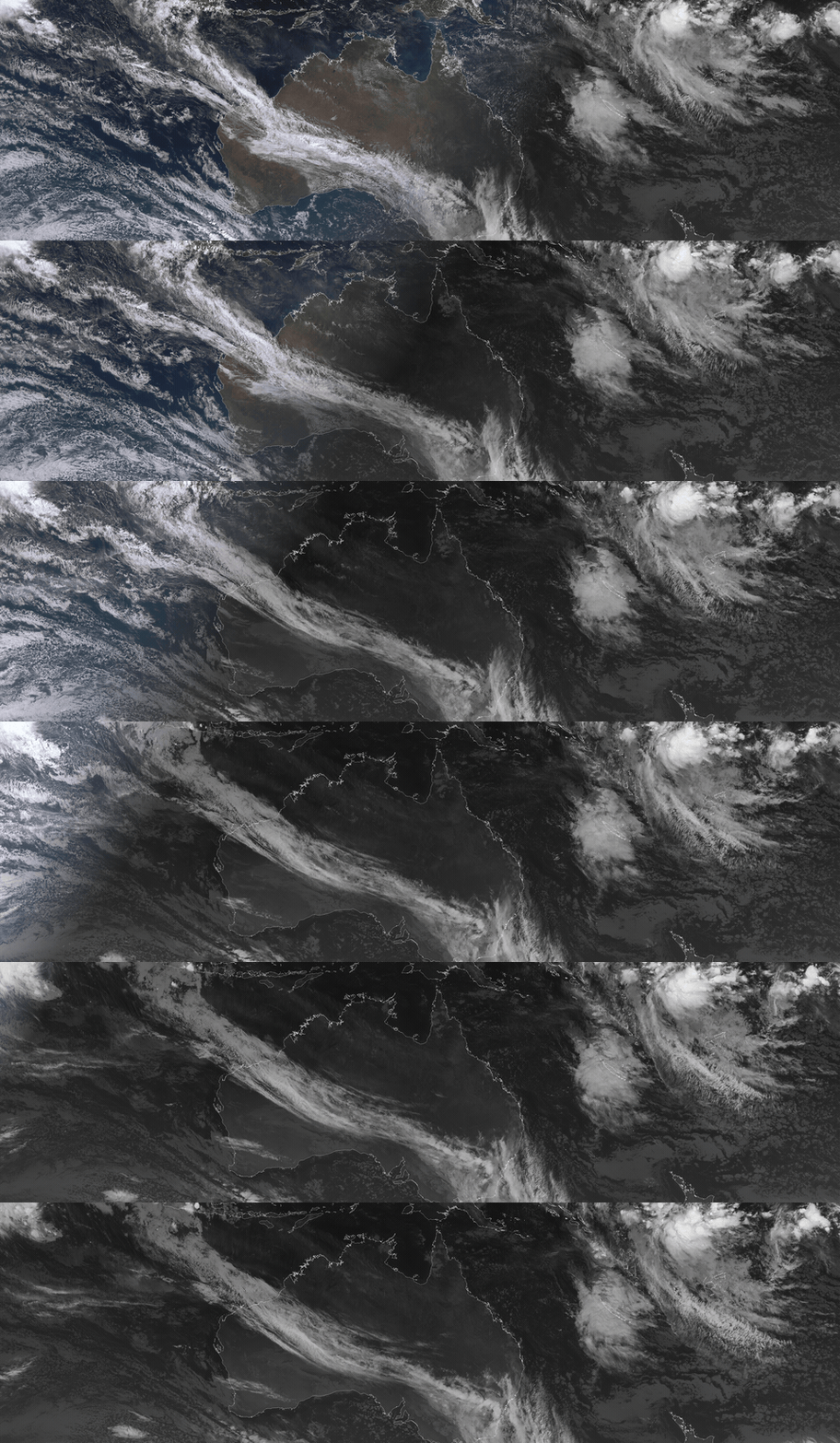
The satellite loop runs from the same locally cached frames the kiosk uses.
Status
The status page pulls machine uptime, IP addresses, Prometheus metrics, Grafana dashboard data, PBS backup ages, and WAN/VPN state through the compositor. It is a domestic summary rather than a full observability view: enough to see whether the house systems are alive without opening Grafana.
It is rendered by the compositor on port 9866.
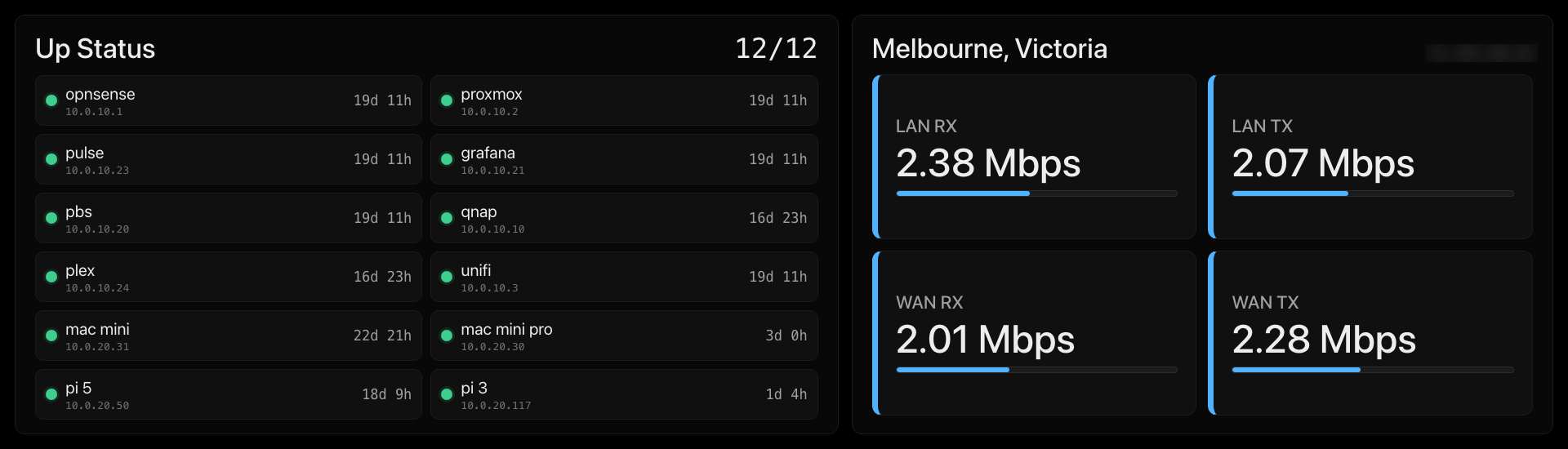
The status page. Public IP information is blurred in this screenshot.
World Clock
The world clock is a separate page. It shows real day and night Earth imagery, a dynamic terminator, local times, and daily temperatures for selected cities. The compositor performs the weather lookups and caches them for 15 minutes.
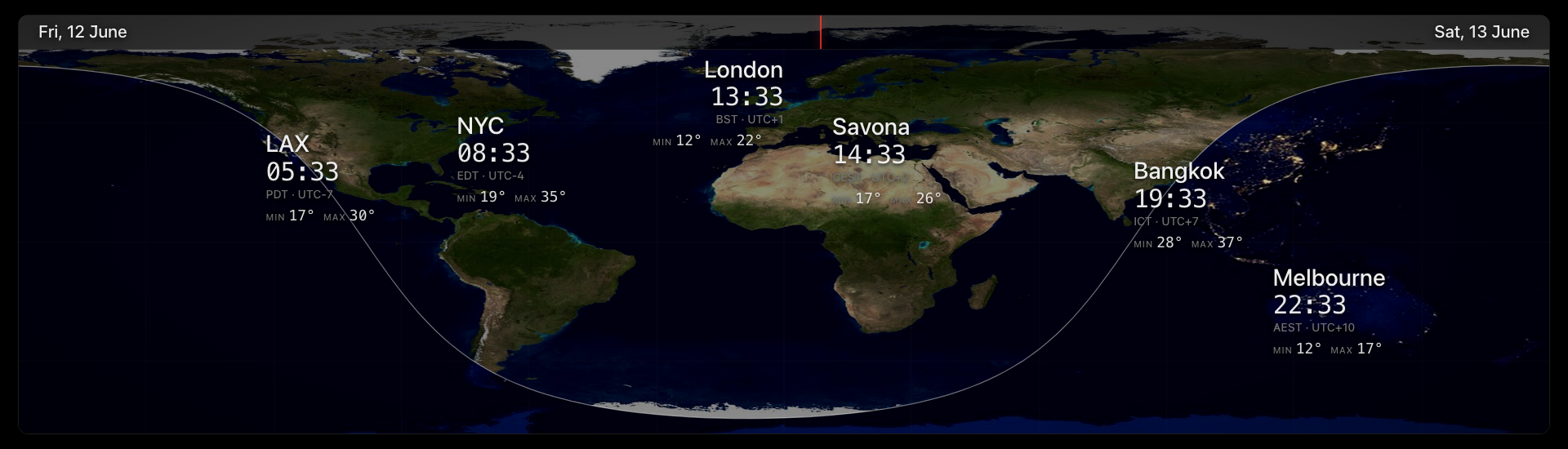
The world clock is less about time zones as a table and more about where the day currently is.
Living Costs
Data source: a published Google Sheet CSV, cached by the compositor for 30
minutes. Only active items due in the current month are shown, so annual costs
appear when relevant instead of occupying space all year. The renderer supports
an optional currency column and converts display totals through configured FX
rates without changing the source amount.
The sheet is deliberately the editing interface: update a row in Google Sheets,
wait for the cache window, and the kiosk changes without a deployment. An
optional currency column preserves the billed currency on each card; category
and monthly totals are converted to AUD using cached daily reference rates. A
sanitized schema and example rows live in config/expenses-example.csv.
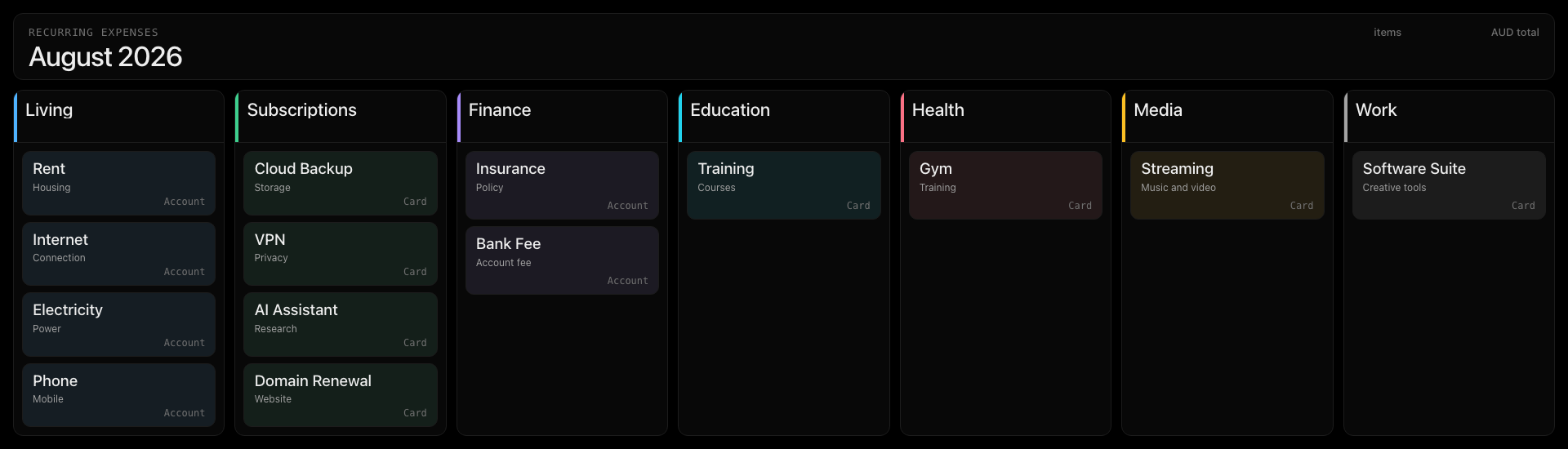
The living-costs page shown with expanded demo data. Amounts are hidden in the published screenshot; the real kiosk uses the same current renderer against the private sheet.
Caching and Performance
The most important performance decision was keeping the Pi boring. The Pi does not download satellite frames, call calendar feeds, query weather APIs, calculate transport schedules, or store state that matters. Those jobs happen on PULSE. The Pi loads already-cached assets from the LAN.
Satellite FIFO Exporter
The satellite exporter runs on Pulse on a timer. It lists the BOM product
directory, selects the newest 36 timestamped files, and reuses every unchanged
file already on disk. Missing frames are fetched serially, validated as JPEG,
and resized once into separate 1920x550 and 1920x1080 variants. Serial fetch
is deliberate: cache repair continues until all expected slots are present
without sending a burst of requests to BOM.
# server/exporters/melbourne-weather-map-exporter.py (trimmed)
def list_satellite_filenames():
    with urllib.request.urlopen(BOM_GMS_BASE_URL, timeout=30) as response:
        listing = response.read().decode("utf-8", errors="replace")
    names = parse_product_timestamps(listing, BOM_SATELLITE_PRODUCT_ID)
    return names[-FRAME_COUNT:]

def fetch_frame(filename):
    request = urllib.request.Request(
        urllib.parse.urljoin(BOM_GMS_BASE_URL, filename),
        headers={"User-Agent": "homelab-bom-satellite-card/1.0"},
    )
    with urllib.request.urlopen(request, timeout=40) as response:
        raw = response.read()
    if not raw.startswith(b"\xff\xd8"):
        raise RuntimeError("unexpected satellite response")
    return SatelliteFrame(
        name=filename,
        image=raw,
        home_image=resize(raw, 1920, 550),
        display_image=resize(raw, 1920, 1080),
    )

def refresh_satellite_frames():
    wanted = list_satellite_filenames()
    frames = [load_cached_frame(name) for name in wanted]
    for name in names_missing_from(frames, wanted):
        save_cached_frame(fetch_frame(name))  # FETCH_WORKERS=1 in production
    publish_in_timestamp_order(wanted)
The production source is more defensive than this excerpt: it warms state from disk at startup, synthesizes placeholders for gaps in BOM’s cadence, preserves the last good state on errors, and serves cache-health indicators. With 36 frames and a ten-minute upstream cadence, the loop represents roughly six hours.
Preloading Frames in the Browser
A naive satellite loop causes black frames between transitions, especially on Pi 3 hardware. The page now loads image objects concurrently, starts playback only after the first usable set exists, retains the previous bitmap while a replacement is unavailable, and periodically retries grey cache slots.
async function startSatelliteLoop() {
  const urls = await getOrderedFrameUrls();
  const frames = await Promise.all(urls.map(url => new Promise(resolve => {
    const img = new Image();
    img.onload = () => resolve(img);
    img.onerror = () => resolve(null); // retry this slot on the next health pass
    img.src = url;
  })));

  const display = document.getElementById('satellite-img');
  let i = 0;
  setInterval(() => {
    const next = frames[i % frames.length];
    if (next) display.src = next.src; // keep the previous frame if absent
    i++;
  }, 200);
}

startSatelliteLoop();
Small debug dots beneath the display show the cache state at a glance: grey for a missing frame slot, green for a cached frame, outlined for the frame currently shown. That diagnostic made the animation much easier to trust during development.
Input: The Seven-Key Keypad
The keypad is what turns this from a web page on a monitor into something that
works like a purpose-built display. It is programmed to send digits 1 through
7 and enumerates as a standard USB HID keyboard.
The controller deliberately has no PyPI dependency. It opens the stable
/dev/input/by-id/*SayoDevice*event-kbd symlink and unpacks Linux
input_event records with struct:
INPUT_EVENT = struct.Struct("llHHi")
EV_KEY, KEY_DOWN = 0x01, 1
KEY_TO_TAB = {2: 0, 3: 1, 4: 2, 5: 3, 6: 4, 7: 5, 8: 6}

def read_key(fd):
    payload = os.read(fd, INPUT_EVENT.size)
    _, _, event_type, code, value = INPUT_EVENT.unpack(payload)
    if event_type == EV_KEY and value == KEY_DOWN and code in KEY_TO_TAB:
        return KEY_TO_TAB[code]
    return None
The service grants the non-login kiosk user access through the input group
and narrows discovery to the SayoDevice path. evtest is still useful for
diagnosing or replacing the keypad, but it is not a runtime dependency.
The physical behaviour is simple:
- press a key once to jump to that page and continue the automatic rotation from there;
- double-press the same key within 450 ms to hold pages 1-6 for 60 seconds before rotation resumes;
- press any key during a hold to cancel the hold and jump somewhere else;
- double-press key 7 to open a pure-black screen indefinitely; any later key press restores the carousel.
The current build uses double-press rather than long-press. Both timings are
configurable with KIOSK_DOUBLE_PRESS_SECONDS and KIOSK_LOCK_STAY_SECONDS.
The Tab Switcher
The controller normalizes the seven configured URLs, waits for DevTools, opens missing tabs, closes restored or duplicate tabs, and reconstructs the expected order before rotation starts. Activating a preloaded page is one loopback HTTP request:
def activate(tab):
    tab_id = tab.get("id")
    request_text(f"/json/activate/{urllib.parse.quote(str(tab_id), safe='')}")
Single key presses, timed holds, blank-screen mode, and carousel recovery all
come from the same controller. It writes the active page number to
/tmp/kiosk-keyboard-page, which the LED helper translates into the limited
kernel LED channels exposed by this keypad firmware.
This logic is all in client/grafana-kiosk-tab-switcher.py. The runnable source
is preferable to a longer duplicated listing in the article.
Autostart and Recovery
Production uses one display service and two small supporting units:
kiosk.servicerunsxinit, Openbox, the launcher, Chromium, and the Python controller as one supervised lifecycle.kiosk-watchdog.timerchecks Chromium, DevTools, and the controller every 20 seconds and restarts the display only after repeated failures.sayodevice-kiosk-leds.servicemirrors the active-page state to the keypad’s kernel-exposed LEDs.
The relevant part of the display unit is intentionally small:
[Service]
User=kiosk
TTYPath=/dev/tty1
ExecStart=/usr/bin/xinit /home/kiosk/.xinitrc -- :0 vt1 -keeptty -nolisten tcp
Restart=always
RestartSec=3
The controller is a child of the launcher. That avoids the race and split-brain failure mode created by two independent services trying to own Chromium.
The recovery story is straightforward: reflash the microSD, copy client/, run
the installer, apply the URL override, and reboot. Pulse keeps all caches and
upstream configuration, so the Pi holds no irreplaceable state.
Privacy
The kiosk runs on the local network. Screenshots for this article are blurred for calendar details and public IP information. The visible UI is real; the private content is not useful to a reader.
That is a good habit for any homelab writing. Screenshots are often more revealing than the text around them.
Repo / File Layout
kiosk-ultrawide/
├── client/                 # Pi launcher, controller, LEDs, watchdog, units
├── server/
│   ├── exporters/          # seven Python HTTP services
│   ├── systemd/            # one unit per server process
│   ├── env/                # sanitized configuration contracts
│   └── assets/             # world-clock Earth imagery
├── config/                 # published-sheet schema/example
├── docs/                   # rebuild and operations runbooks
├── scripts/                # server and client deployment helpers
└── article/                # this draft and publication-safe media
Private values live only in root-owned /etc/*.env files on Pulse. The tracked
examples contain placeholders and document every variable without publishing
the values. This is easier to audit than one large config.py and lets each
service restart independently.
What Worked
The best decision was separating the display from the data work. The Pi only renders. PULSE collects, caches, reshapes, and serves. That makes the Pi easy to replace and keeps the weakest hardware doing the least complicated job.
The second best decision was designing for the actual aspect ratio instead of stretching existing dashboards. The ultrawide screen is not a normal monitor with extra width; it is a different canvas.
The third was adding physical controls. A dashboard with seven mapped keys starts to feel like equipment.
What I Would Change
The Raspberry Pi 3 works better than expected, but I would still choose a Pi 4 or Pi 5 for a fresh build if the budget allows. The extra browser headroom is useful, especially for animated pages and high-resolution displays.
I would also treat the physical frame as part of the project from day one. The software is what makes the kiosk useful, but the frame is what makes it feel permanent.
Conclusion
This kiosk is a small domestic instrument panel.
The rack kiosk tells me whether the homelab is healthy. This one tells me what the day looks like: meetings, weather, transport, time zones, and whether the basic systems are alive.
The architecture is deliberately modest: one Pi, one ultrawide screen, one keypad, and a set of local pages served from the homelab. But when the pieces are tuned to the shape of the display and the rhythm of the room, the result feels much more useful than a browser left open on a spare monitor.